You want a "Sale ends Sunday" bar across the top of your store. It should show up Friday morning and vanish Sunday night. Simple enough.
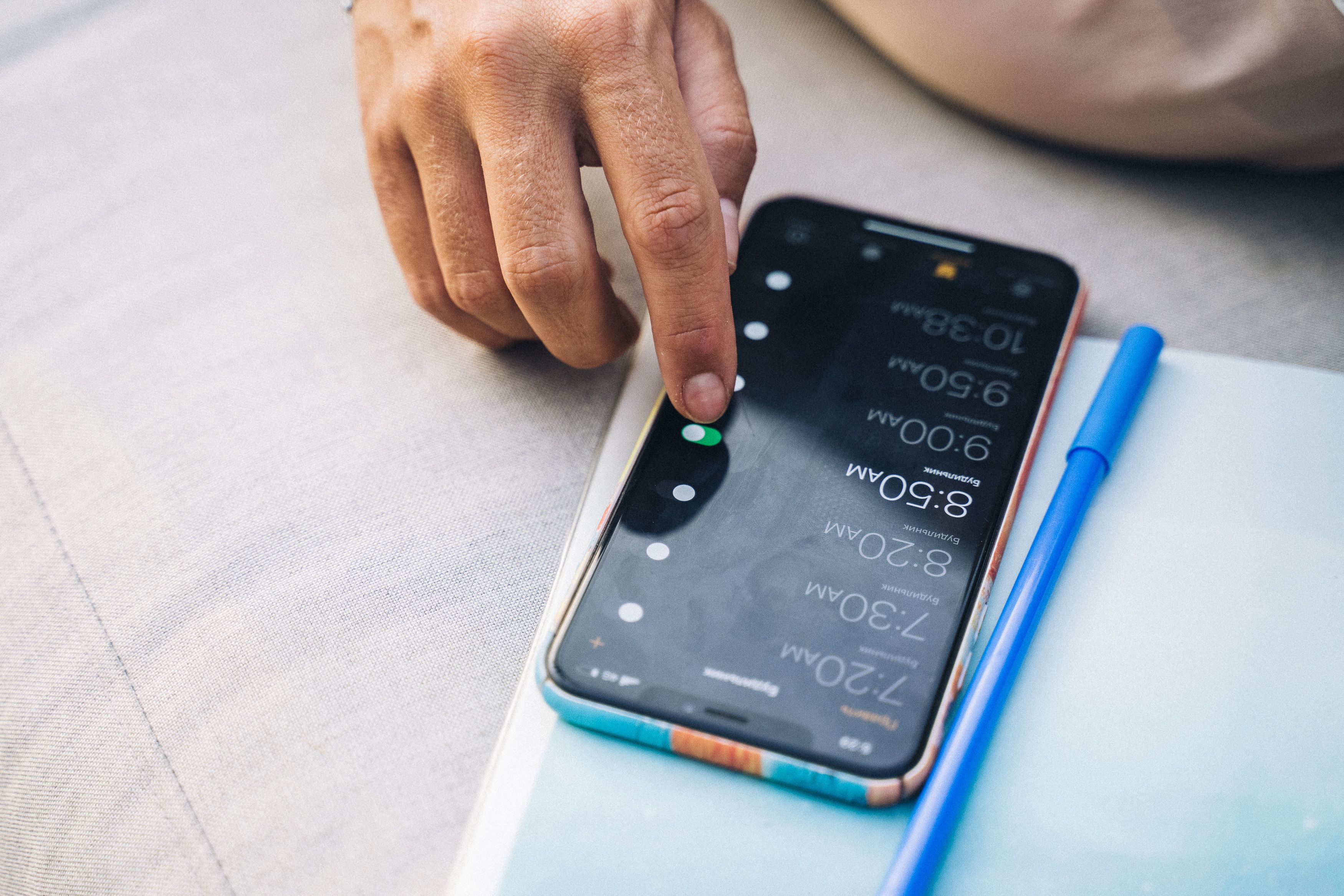
Then you check the admin. There's no timer. Shopify lets you add an announcement bar in the theme editor, but it stays exactly as you left it until you go back in and change it. Turning it on and off is a manual job. So most people end up doing the old routine: edit the theme Friday, edit it again Sunday, and hope they remember.
You can skip all of that. Here's how.
What Shopify actually does with announcement bars
Let's be straight about the native tools first.
Shopify themes ship with an announcement bar section. You edit the text, pick a color, save, and it's live. That part works fine. What Shopify does not give you is a schedule. There is no built-in "show this bar from this date to that date" setting on Basic, Shopify, or Advanced plans. You publish the change by hand and you take it down by hand.
There's a Plus-only tool called Launchpad that can schedule store events, including theme changes. If you're on Plus, that's an option. If you're on any other plan, it isn't available to you at all.
So on a standard plan, the honest answer is: scheduling an announcement bar means editing the theme twice, or using an app that flips it for you.
This is different from discounts and products. Shopify already schedules a discount's start and end date, and it schedules a product going live. The announcement bar is one of the spots with no native timer. That's the gap we're filling here.
The manual method, and why it's a pain
If you want to do it without any app, here's the reality of it.
- Friday morning, open the theme editor, add or enable the announcement bar, save.
- Sunday night, open the theme editor again, disable it, save.
That works. But it puts you at the keyboard at the exact moment your sale starts and ends. Miss the Sunday step and your "Sale ends Sunday" bar is still bragging about a sale that ended two days ago. Not a good look. And if the sale starts at midnight, someone is staying up for it.
There's a duplicate-theme version of this too, where you build a second theme with the bar and publish it at go-live. That's heavier, it swaps your whole live theme, and it still doesn't schedule itself. For one bar, it's overkill.
Schedule the bar with the app embed block instead
Schedule It handles the announcement bar as a scheduled action. It uses the app embed block, so there's no Liquid to touch and no theme duplicate to manage. You set a start time, a stop time, and walk away.
Here's the shape of it:
- Install the app and enable the Schedule It app embed in your theme. This is a one-time toggle in the theme editor's
App embedslist. No code. - Create an automation for the announcement bar. Set the message, the start date and time, and an end date and time.
- Save. The app turns the bar on at the start, and reverts it at the end.
That's the whole thing. The bar appears when the campaign opens and disappears when it closes, on the schedule you set, without you being there for either moment.
Because the bar lives in the app embed block, you're not republishing your theme or editing sections. Your live theme stays exactly as it is. The bar is a layer the app controls on a timer.
Point your bar and your discount at the same clock. If your sale runs Friday 9am to Sunday 11:59pm, set the announcement bar to the same window so the "Sale ends Sunday" copy is never lying. You can also chain them into one automation so the discount and the bar fire together.
Coordinating the bar with the rest of the sale
A bar on its own is fine. A bar that fires with everything else is better.
Schedule It lets you chain several actions into one automation. So a flash sale can be one scheduled event: apply the discount, drop the price, flip the announcement bar on. When the end time hits, the whole set reverts together. The bar comes down at the same moment the discount expires, so you never have a live banner pointing at a dead sale.
That's the real advantage over doing this by hand. It isn't just that the bar is automated. It's that the bar, the price, and the discount all move on the same schedule, in one place, without three separate trips into the admin.
A few practical notes:
- Schedule It fires at the exact date and time you set, so a midnight launch means midnight, not whatever hour the server feels like.
- If Shopify hiccups at the exact second, the app retries transient errors automatically, so a one-off blip doesn't leave your bar stuck.
- You get execution logs and email alerts on completion or failure, so you know it actually ran.
If you're building a full sale and not just a banner, the flash sale that ends on its own walk-through pairs well with this, and you can see the rest of the Features for what else you can put on a timer.